Harmony, score and board
Chord grid
Section titled “Chord grid”The Harmony panel shows the chords like a page of a real book, and lights up the bar being played. Create a grid from a form (AABA, blues, verse / chorus…), then type the chords. Transpose it in one click.
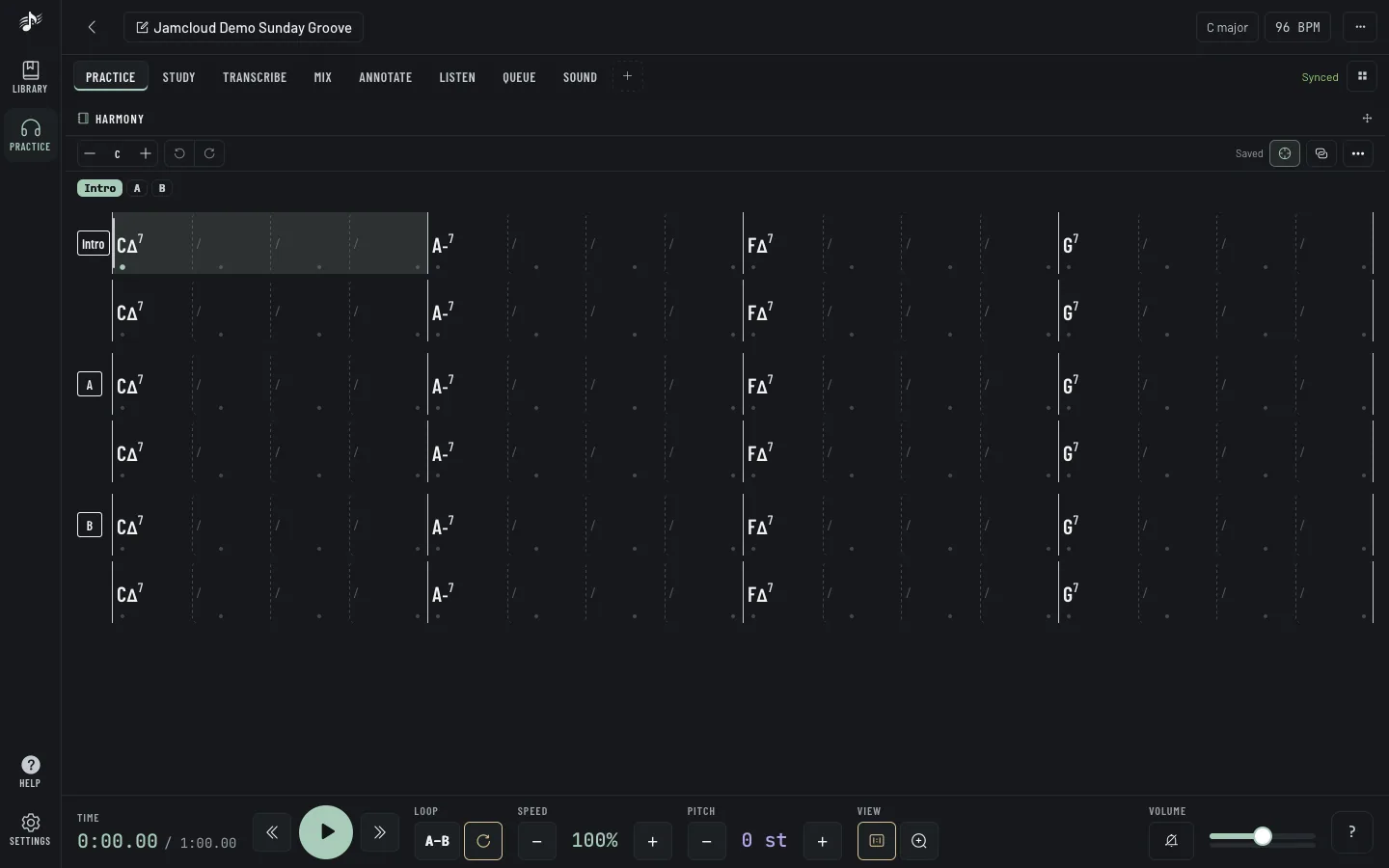
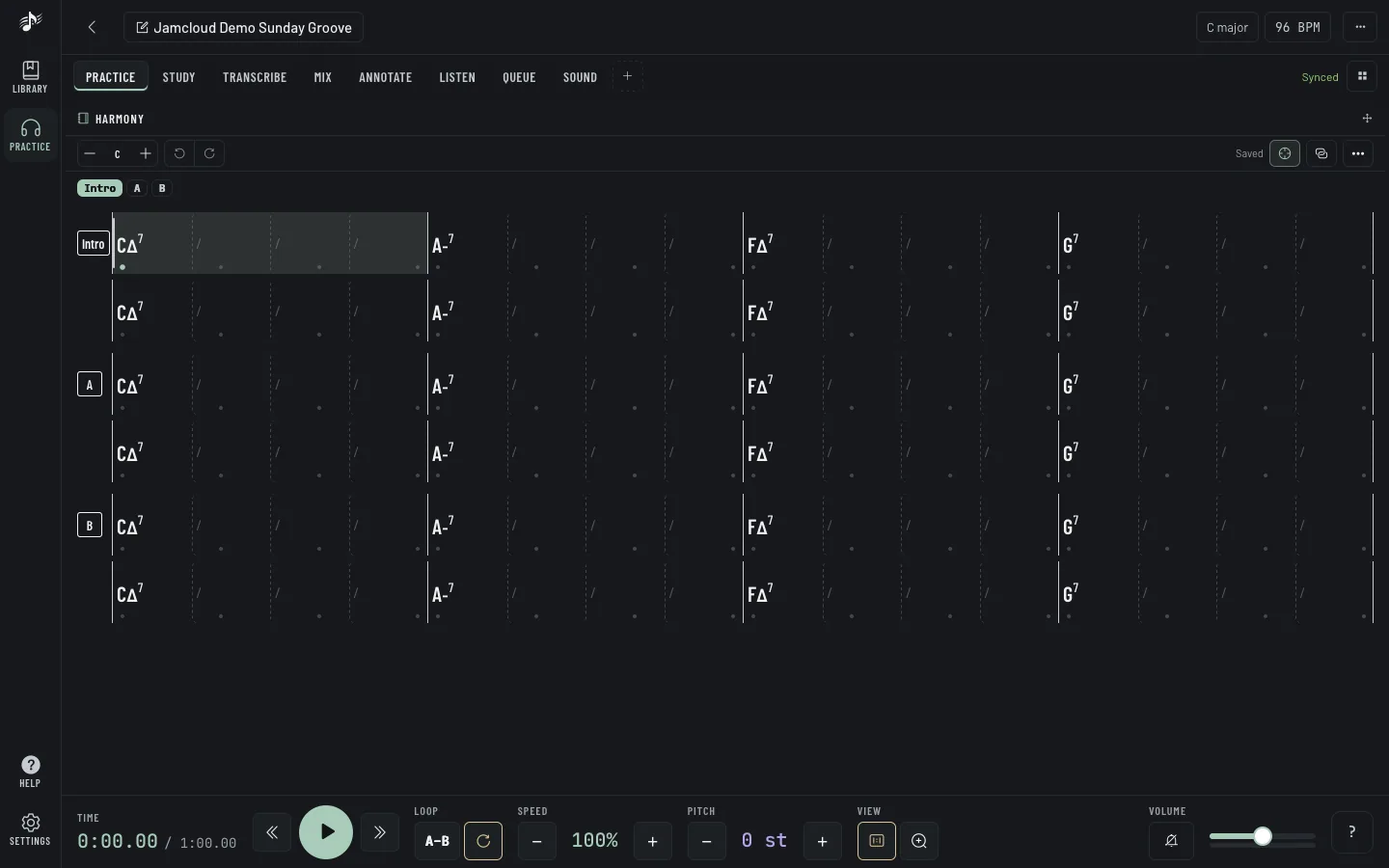
The grid follows the track’s beat map. If it is a bar off, the Sync menu sets where bar 1 starts, moves the grid by a bar or a beat, or lets you tap along on a free-tempo recording.
Score and tab
Section titled “Score and tab”More › Import a score… attaches a Guitar Pro, MusicXML, MuseScore, MIDI or similar file. Switch the panel between Grid, Score and Tab: the cursor follows playback, and clicking a note moves the player there. The score can also fill the chord grid.
Importing a score needs the Score import permission of the workspace owner’s plan (if it is off, the import is hidden), and the file counts toward the owner’s storage.
On a tablet or a computer you can write a score yourself, or edit an imported one. On a phone, scores are read only.
Click Edit: a bar of tools groups Duration, Notes, Symbols (rest, tie, chord name), Tab (string and fret), Bar and Edit (undo, delete). The keyboard button lists the shortcuts.
The Board is a whiteboard: text, freehand drawing, staves, tabs, chord diagrams, fretboards and chord progressions. Each track has its own board, and the workspace can have free boards (“Modes lesson”, “Setlist ideas”).
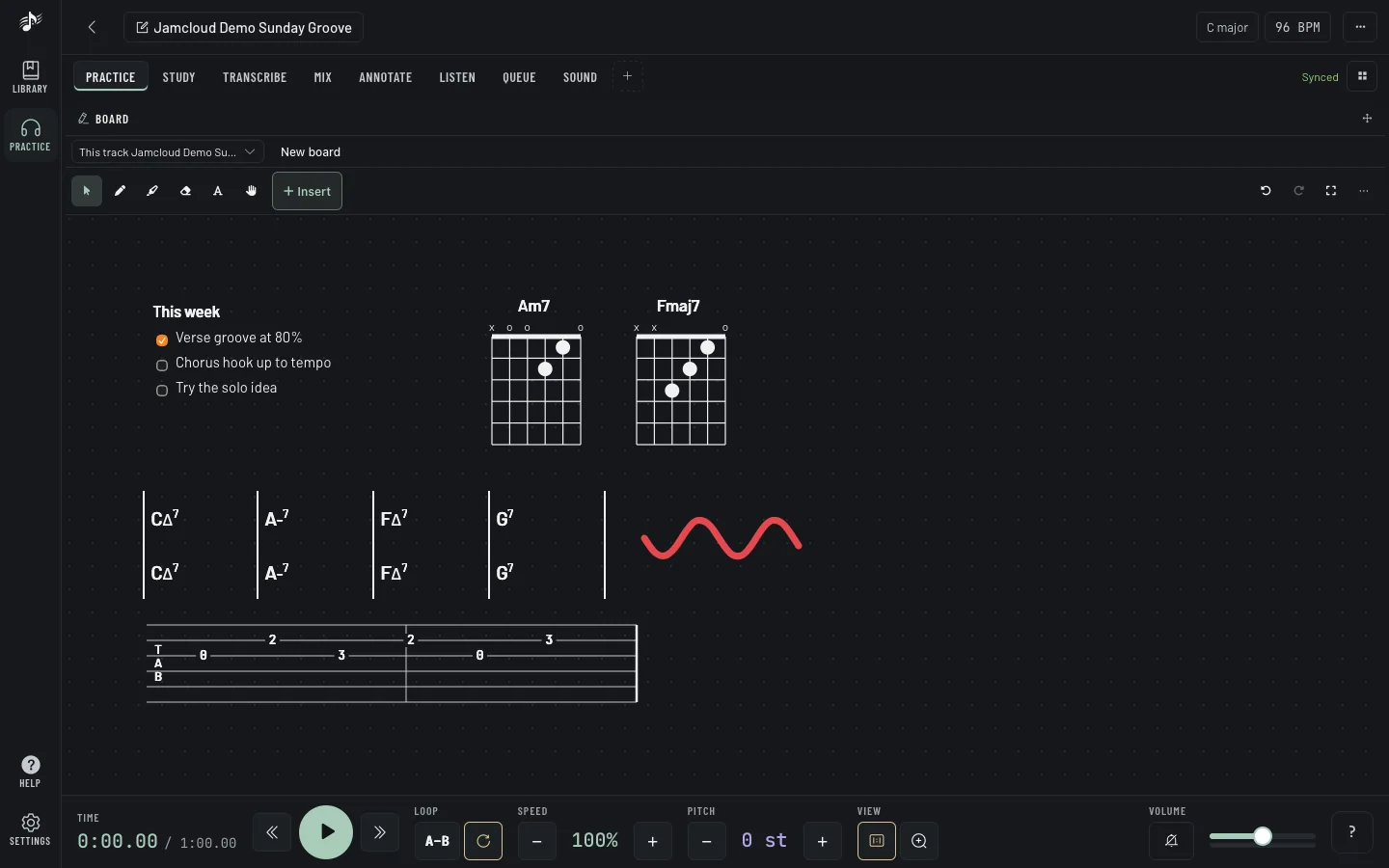
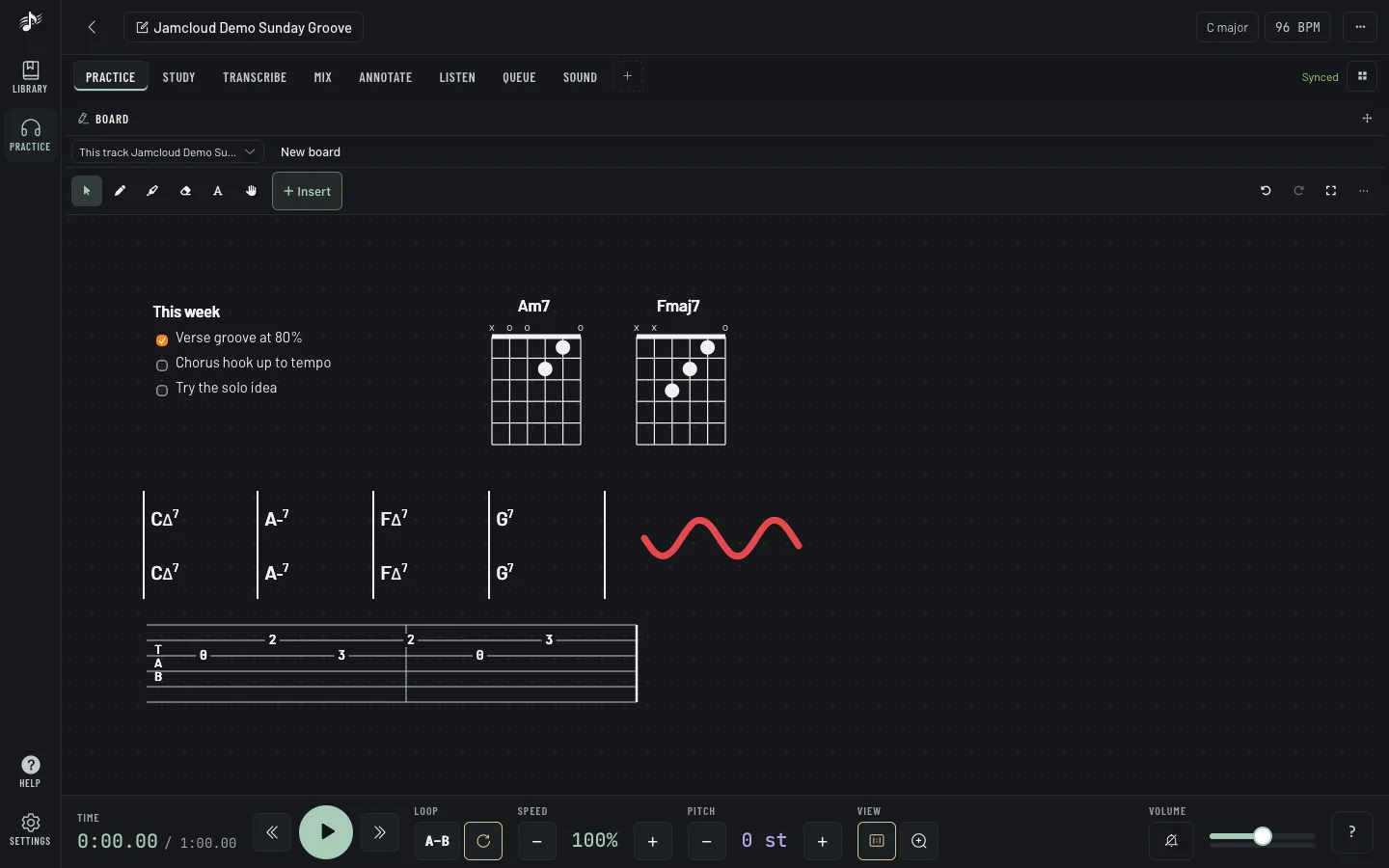
Everything sits in one row at the top: the board picker and its ⋯ menu (new board, rename, clear, delete), the drawing tools with one round button for the pen’s colour and width, then Insert, undo, redo and fit.
In a shared workspace, everyone sees the board change live. Members with Write access can draw on it; the owner can also let readers write, for a lesson. Undo only takes back your own changes.
Tip: Progression from this track drops the track’s chord grid onto its board.