Welcome
Import the songs you are working on, then shape the Practice page around what you need today: loop and slow down a solo, follow the chords, mute your instrument in the stems, write lesson notes on a shared board, tune up, record yourself. Everything you add to a track is saved with it.
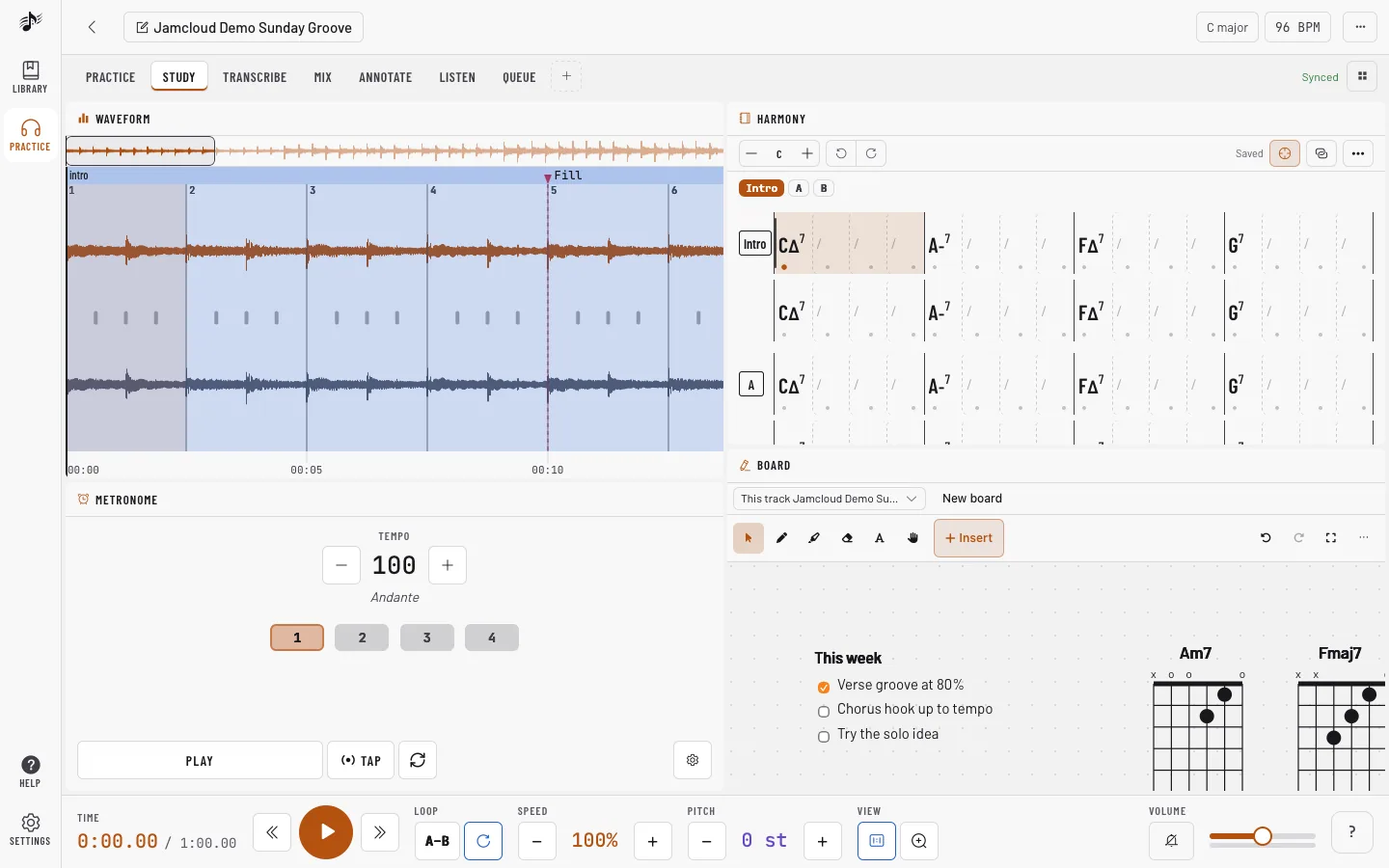
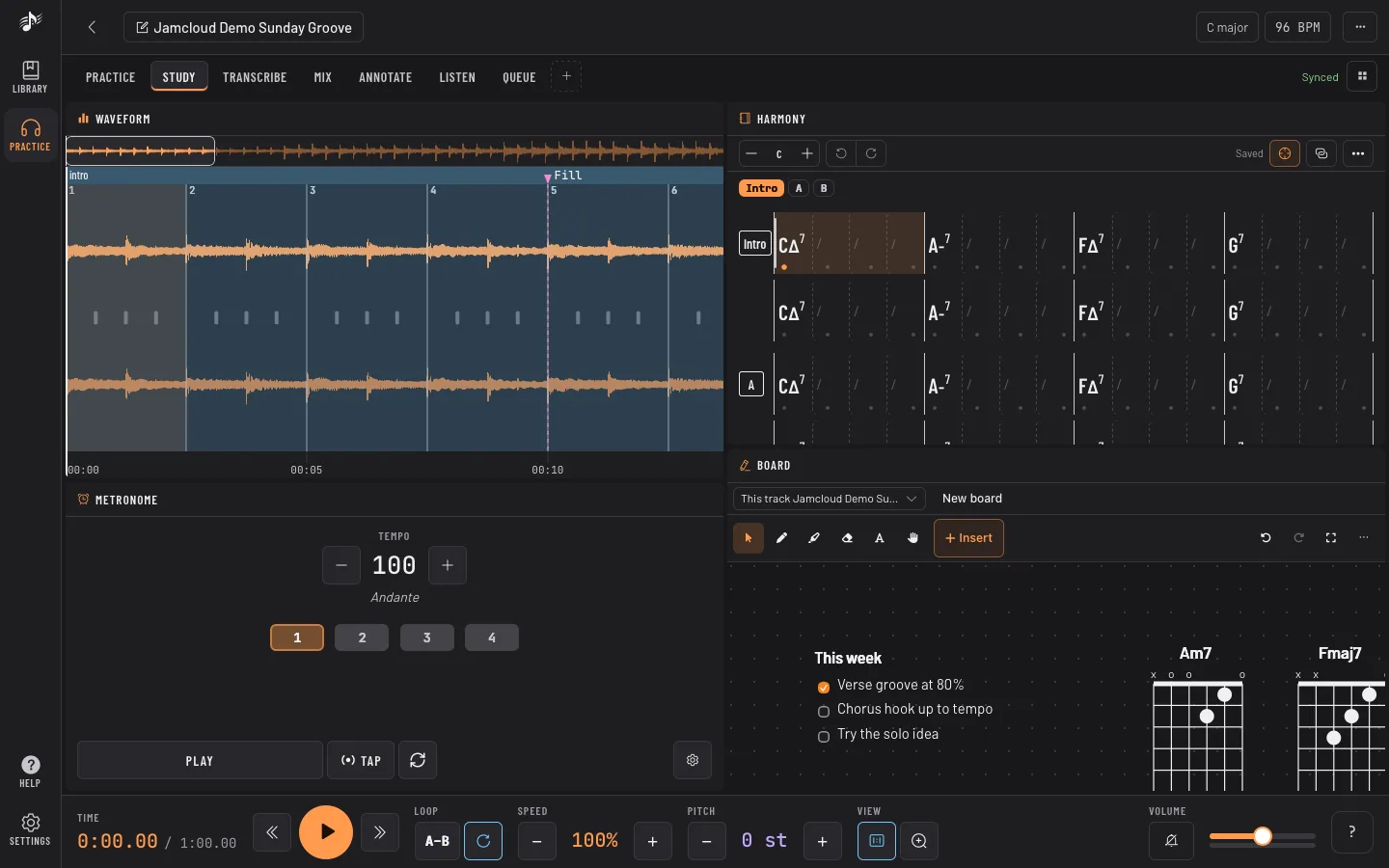
Make it yours
Section titled “Make it yours”Nothing is fixed. The Practice page is a set of areas you split, resize and fill with the panels you want, and you keep one layout per kind of work in tabs: one to drill, one to study the harmony, one to transcribe, one to mix. Your layouts follow your account on every computer. See Your workspace.
Your tracks also live in workspaces: a private Personal one, and shared ones for a band, a class or a student. See Sharing.
Start in three steps
Section titled “Start in three steps”- Import a track from the Library. JamCloud finds its key, tempo and beats in the background.
- Open it and press play (
Space). Drag across the waveform to loop a passage; use Speed and Pitch in the transport to slow it down or transpose it. - Pick a layout tab (Practice, Study, Transcribe, Mix, Annotate, Listen, Queue), then change it until it fits the way you work.
Where to go next
Section titled “Where to go next”- Your workspace: layouts, panels and setups for each kind of work.
- Library, Practice, Listen, Harmony, score and board, Sound and stems.
- Sharing with your band, teacher or students.
- Phone, settings and shortcuts.
Tip: The search box at the top of the guide finds a feature by name.
Report a problem
Section titled “Report a problem”Something broken, confusing or missing? Tap your avatar (the Account tab on a phone), then Report a problem. Pick Bug, Idea, Question or Other and describe it in a few words. The app version, the page you were on, your device and the open workspace are attached for you, so you do not need to explain them.