Library
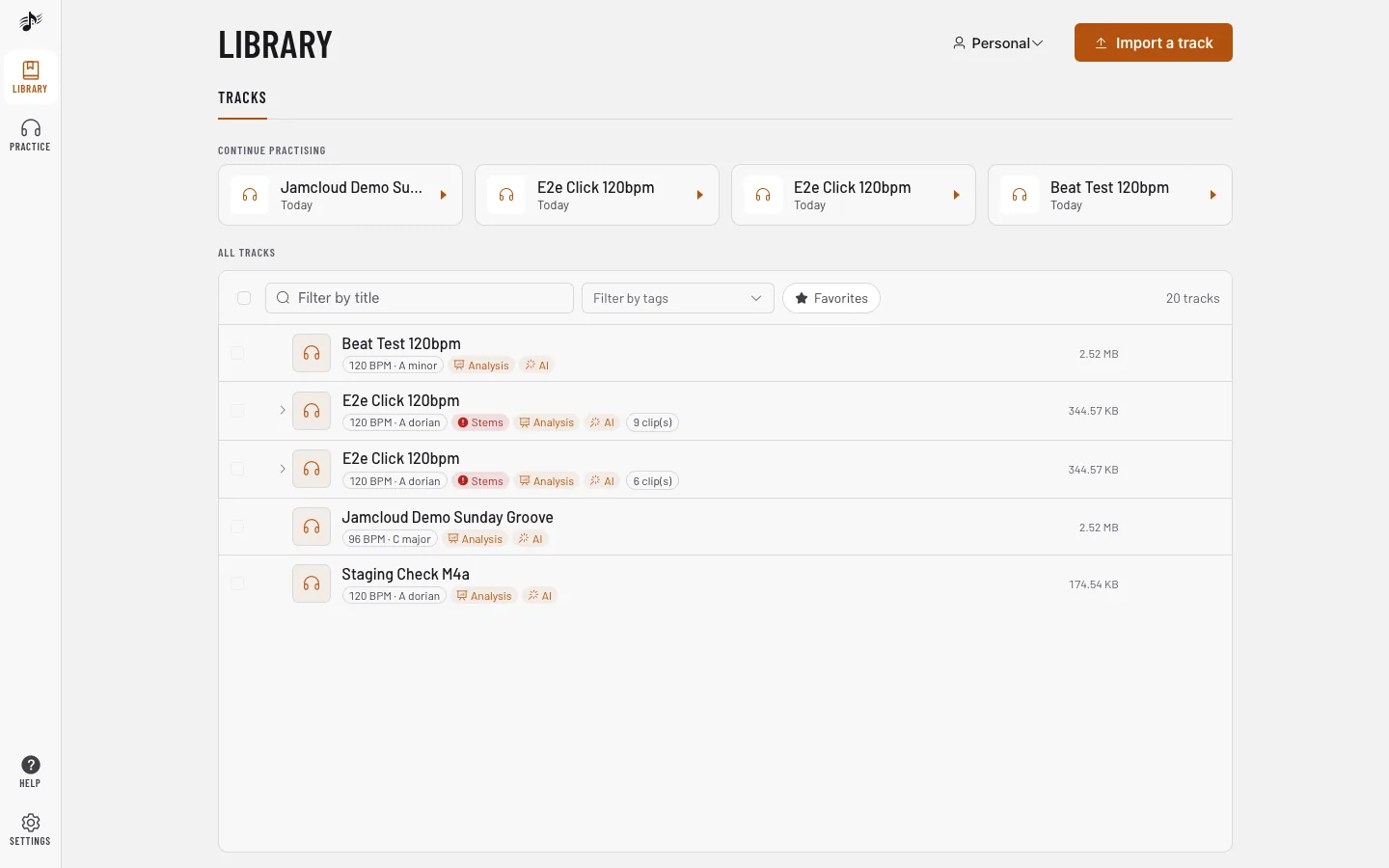
The library lists the tracks of the workspace you are in. The workspace name, first control of the list’s header row, switches to another workspace. Choose All workspaces there to list the tracks of every workspace you belong to in one list: each track shows its workspace, folders are not shown, and a track opens in its own workspace. Imports still go to the current workspace.
The Library panel of Practice has its own workspace choice, first in its list’s header row: pick a workspace or All workspaces to browse it without leaving the track you are practising. It changes only that panel: the library page, the open track, its board and notation stay in your current workspace.
Import
Section titled “Import”Click Import a track: one small window does it all. Drop audio files on it, or Choose files (a whole folder too, with Choose a folder, on a computer and if your plan allows it). On a phone, tap Choose files to pick from your files or music. To import from YouTube, SoundCloud and other sites, paste a link and press Import (or Enter). With a single file, the track opens as soon as it is uploaded (switch Open the track when it’s uploaded off to stay in the library). JamCloud then analyses it in the background: key, tempo and beats appear after a moment, and you can play it right away.
You see Import a track in your own workspaces and in shared ones where you have Write access.
Find and organise
Section titled “Find and organise”- Continue practising brings you back to the last tracks you opened.
- Filter by title, by tags or by favourites above the list.
- Track actions (the three dots of the track bar on the Practice page) edits the title, description and tags, stars the track, exports or deletes it.
- Tick rows in the library to delete them or Move to… another workspace you own.
- Swipe a track in the list: to the right to download it to this device (or remove its download), to the left to delete it (owners only). On a computer, the same two buttons appear when you hover a row.
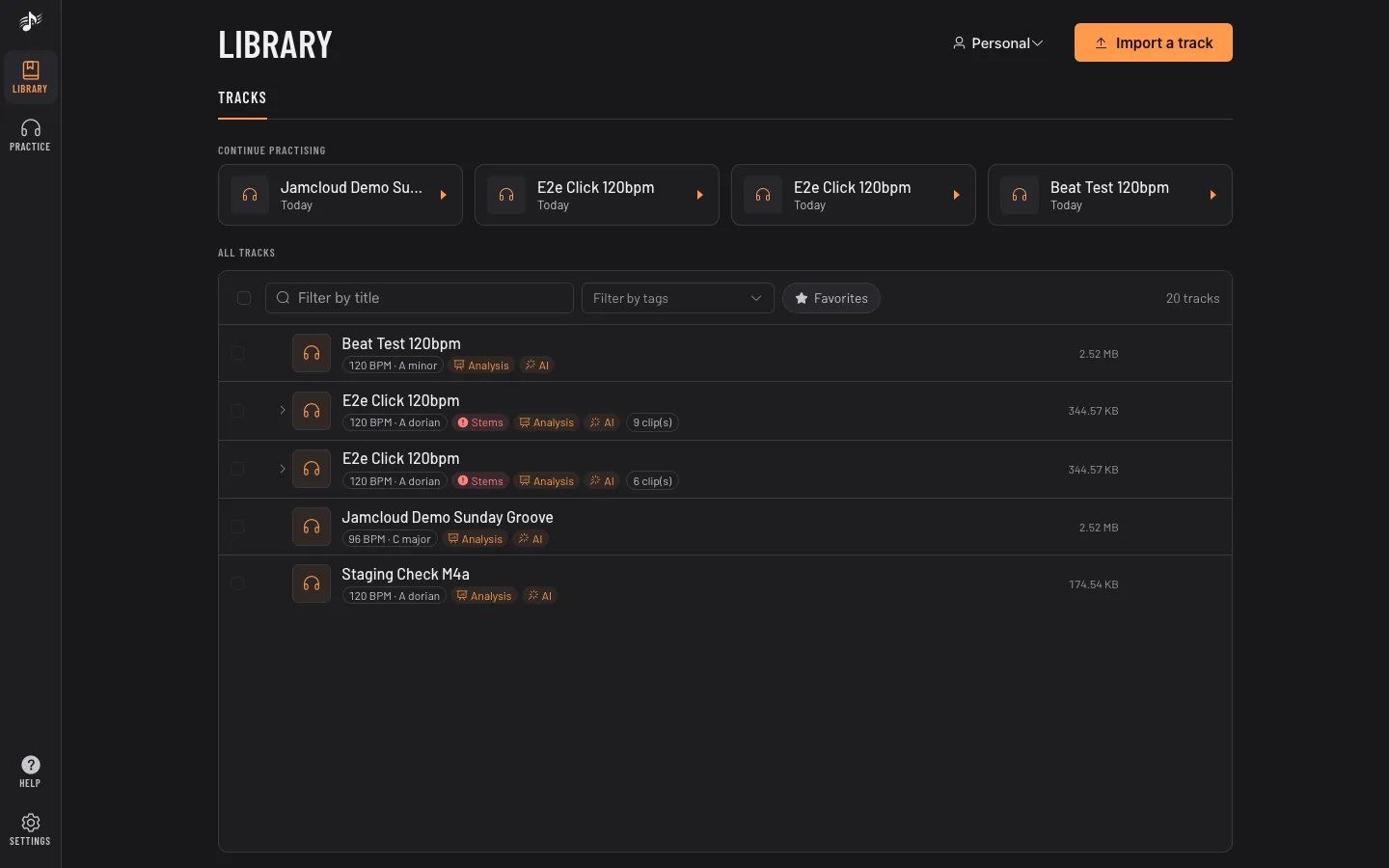
- Under each title, small badges show what was done on the track: tempo and key, Stems, Analysis, Sections and AI. A badge turns orange while the task runs and red when it failed. While stems wait in line, their badge shows your place and a rough wait (for example #3 in line · about 5 min), kept up to date.
Extract a part… in Track actions (or the scissors of a loop or a section) cuts a passage into a new track, for example the solo you are learning. The original is not changed, and the clip is grouped under it in the library.
Offline
Section titled “Offline”In a track, the ⋯ menu › Make available offline downloads it to this device: the mix, the stems, the analysis, the score, the board and your markers. To download several, select them in the list and tap Available offline. A ✓ marks them in the list. With no network (in the installed app on iPhone too), the library shows only these tracks and they play as usual; changes wait until you are back online. Settings › Offline lists them with their size and the space left, and removes them. Signing out removes every download.
Swipe a track to the right to download it, or again to remove its download. When tracks are downloaded, a line above the list gives their number and size: Empty removes them all from this device (they stay in your library).
When JamCloud is unavailable
Section titled “When JamCloud is unavailable”If our server stops answering while you are online, a notice at the top says JamCloud is briefly unavailable: there is no need to check your connection. It goes away by itself as soon as the server is back, and the live updates reconnect. Opening JamCloud during such an outage shows a waiting screen that tries again on its own (or tap Try now), then brings you back where you were, still signed in. Downloaded tracks keep playing meanwhile.
Storage
Section titled “Storage”Tracks, stems and takes use the storage of the workspace owner. Your usage is in Account › Profile.