Phone, settings and shortcuts
On your phone
Section titled “On your phone”JamCloud runs in your phone’s browser, nothing to install. On the Practice screen the waveform fills the screen, the transport stays at the bottom, and the panel bar under the waveform opens one panel at a time in a sheet: tap again to close it, swipe its header up to give it the whole screen. Your computer layouts are not used there.
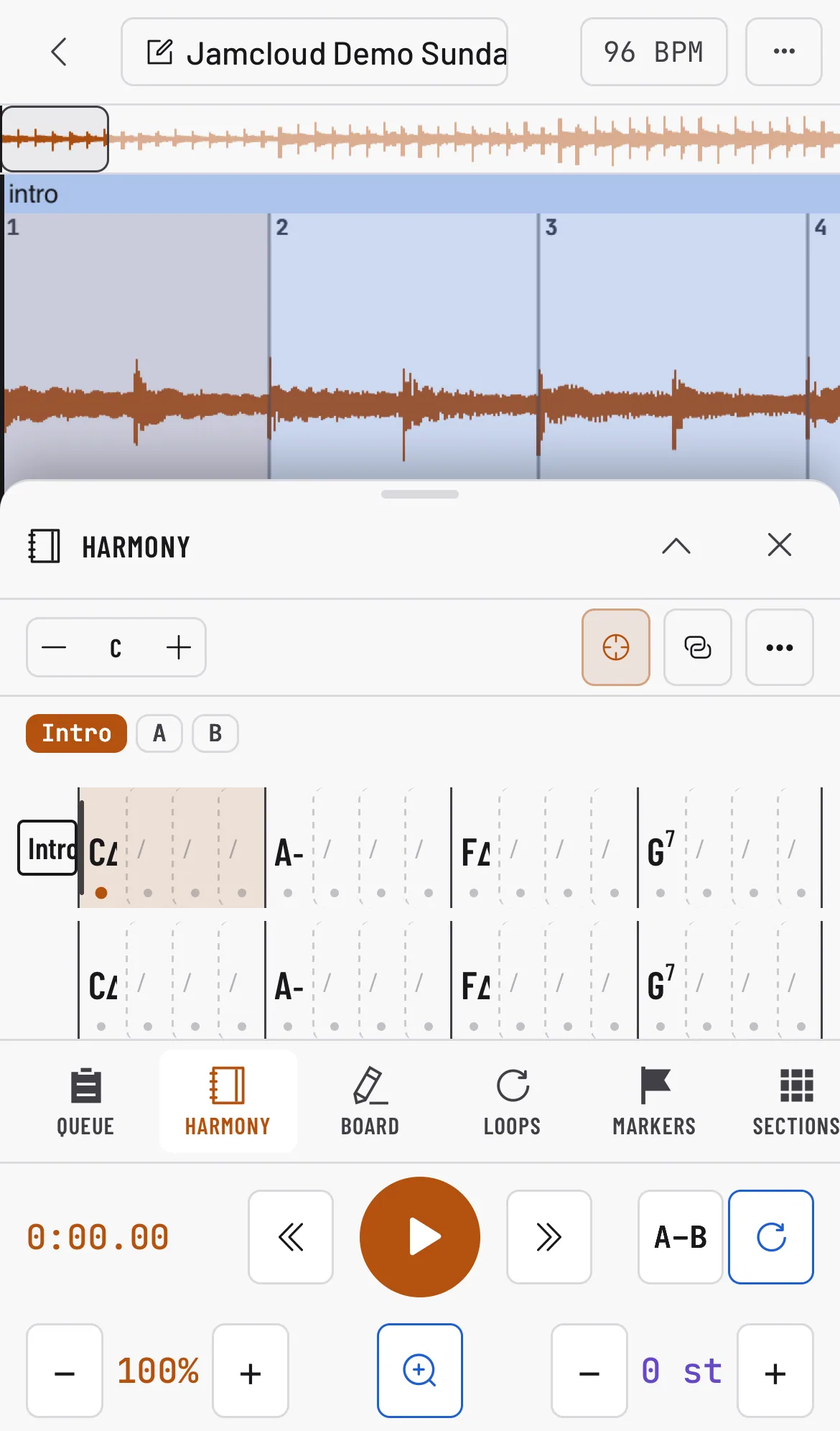
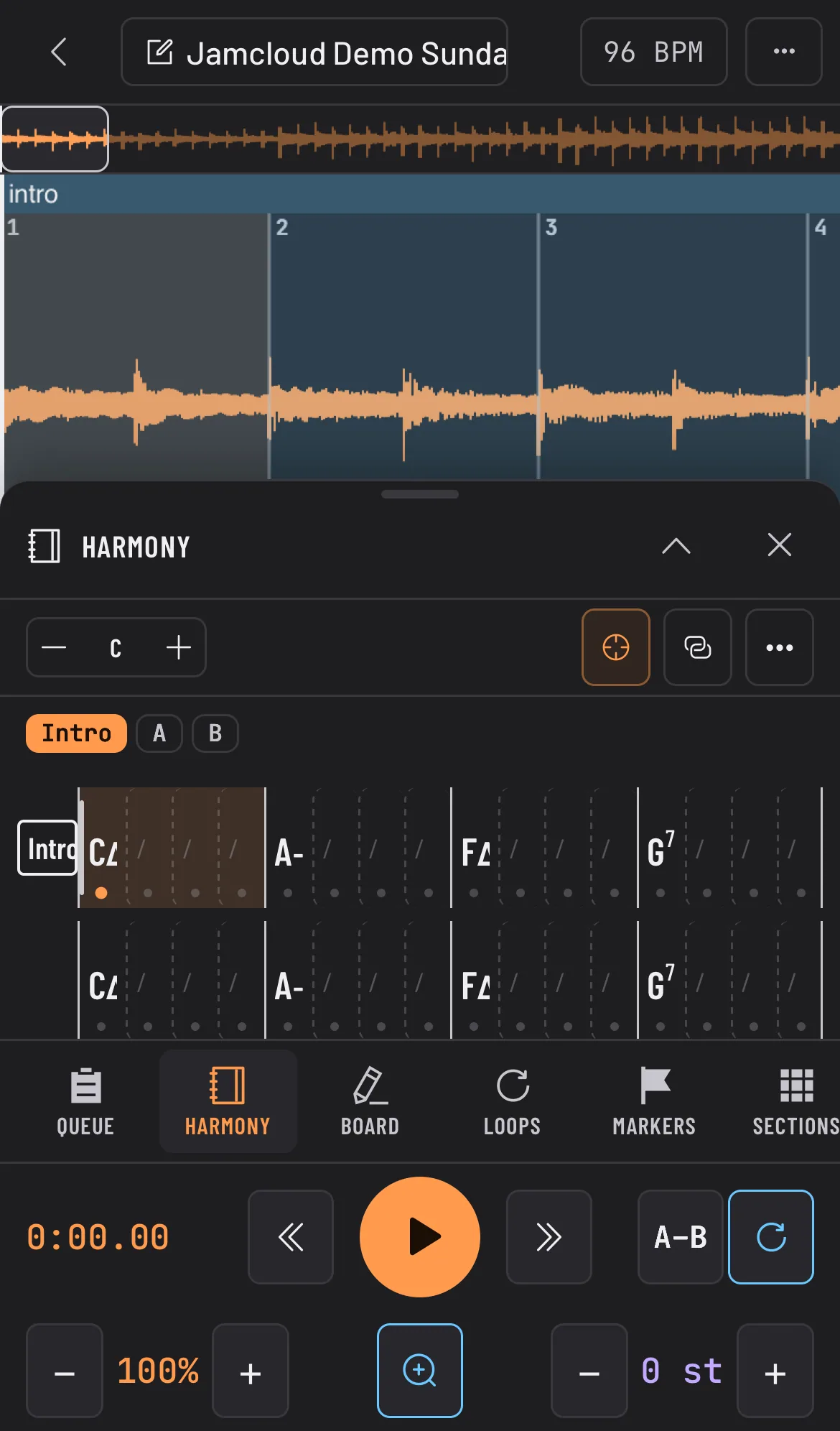
Turn the phone sideways for a wider waveform and fullscreen.
Tip: No sound on iPhone? Check the silent switch.
Install the app: on Android, and in Chrome or Edge on a computer, Settings › General › Install puts JamCloud on your home screen or in your apps, in its own window. On iPhone and iPad, Safari has no install button: tap Share, then Add to Home Screen, and JamCloud opens full screen, like an app. Settings shows these steps until you add it or tap Hide.
Notifications: in Settings › Notifications, turn on Notifications on this device and JamCloud tells you when a recording, an import, a score import or a stem separation is ready, or when you lose access to a workspace, even with the app closed. Pick the ones you want under the switch, then click Apply. On iPhone and iPad, add JamCloud to your Home Screen first, then turn them on in the installed app (iOS 16.4 or later). Each device is turned on separately, and signing out turns it off.
Settings
Section titled “Settings”On a computer, the gear at the bottom of the left bar opens a small menu: Settings, and Help guide, which opens this guide in a new browser tab. On a phone, Settings and Help are tabs.
Settings holds your preferences:
- General: language, timeline, note names, left-handed diagrams.
- Panels: the panels Practice offers, each with a short description; turn off the ones you don’t use (see Your workspace).
- Theme: ten dark and ten light themes, including high-contrast and colour-blind-safe ones.
- Shortcuts: change any key.
- API keys: personal keys for your own scripts and tools (see API). The tab is there only while the developer API is turned on for JamCloud.
- Local library: pair a computer and play its music in JamCloud (see Local library). Shown when your plan includes it.
Account (your avatar, right after Settings) opens a small menu: who is signed in, Account settings and Log out. Account settings holds your account:
- Profile: your account, your plan, your storage and monthly quotas.
- Security: two-step sign-in with an authenticator app.
- Danger Zone: reset your settings, or delete your account.
Log out, at the top, signs you out after a confirmation.
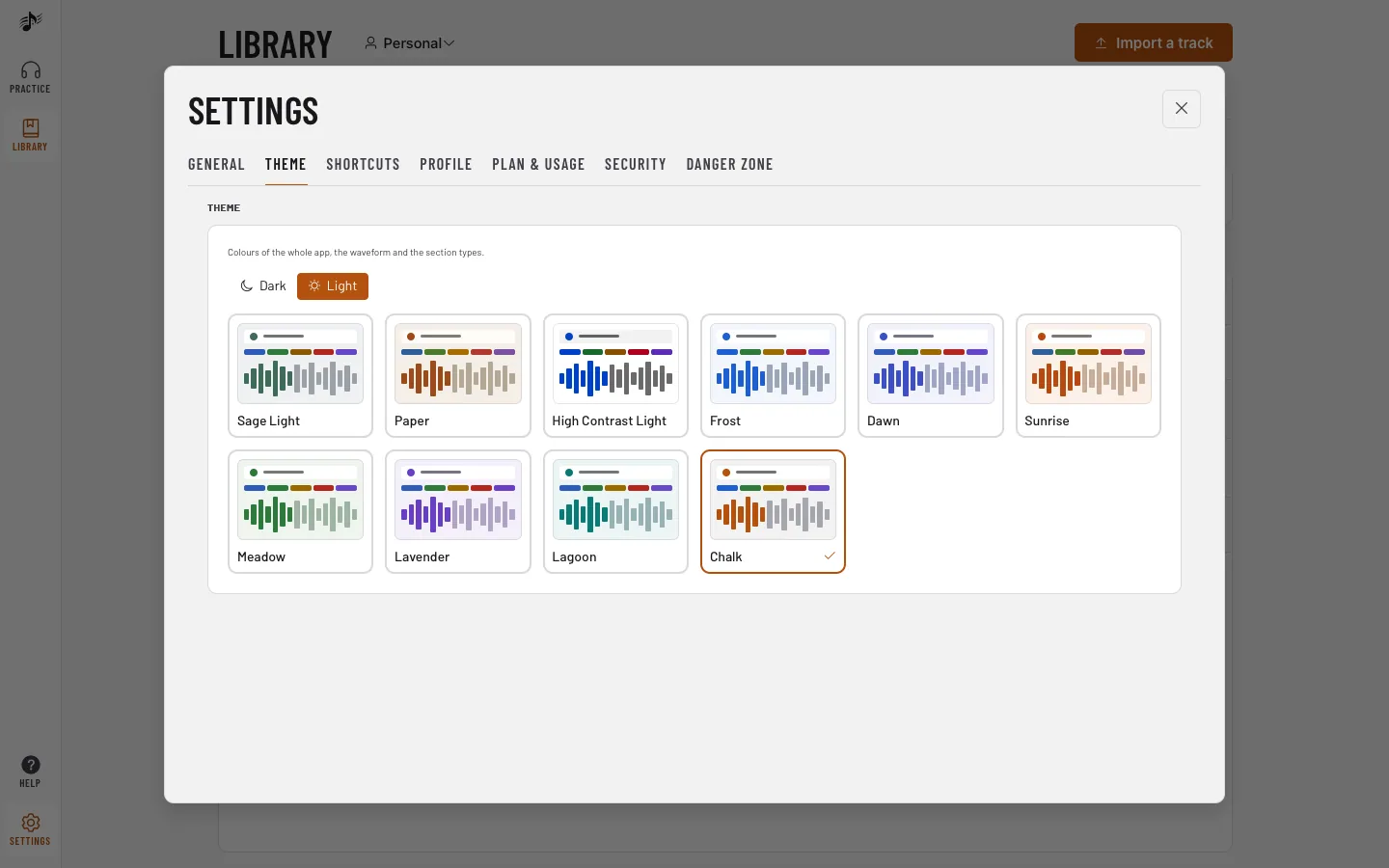
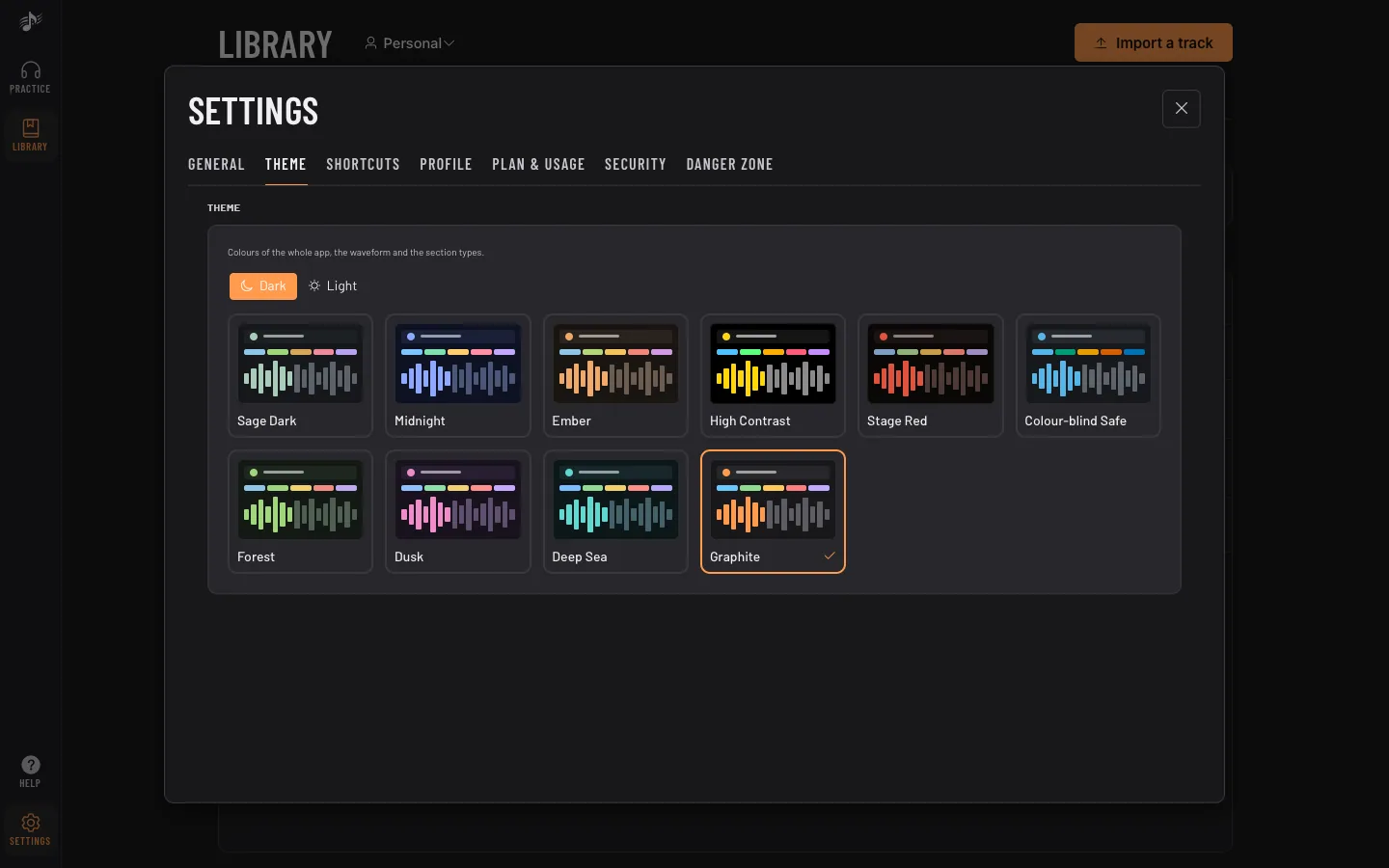
Click Apply to save your changes.
The small Version line at the bottom of Settings shows which build of JamCloud you are running.
Next to it, Privacy opens the page that explains what JamCloud keeps about you, where, for how long, and how to delete it.
Keyboard shortcuts
Section titled “Keyboard shortcuts”Every shortcut can be changed in Settings › Shortcuts, grouped by where it works: the app, the player, the metronome, and each editor. Click a key to change it, + to give an action a second key, × to remove it, and Reset to get the default back. If the key is already used, JamCloud names the action that has it and moves it on your OK.
On the Practice page, Shift + Tab moves to the next layout tab (Study, Transcribe, Mix…), wrapping after the last one. Previous layout tab and the workspace keys (next / previous workspace) have no key until you give them one. Inside a dialog, Shift + Tab still moves between its fields.
Shortcuts never fire while you type in a text field. What you type in the editors stays fixed: fret numbers, note letters, chord names, the arrows that move the cursor, and Enter / Esc in dialogs. So does Ctrl + Space, which maximizes the area under the pointer.
The ? button of the Practice transport lists the Practice keys and opens this guide.
Your current keys:
| Action | Keys |
|---|---|
| App | |
| Open settings Opens the settings | S |
| Open profile Opens your profile | U |
| Open playlist Opens the playlist | P |
| Import audio Opens the audio import | I |
| Export Exports the open track | X |
| Track information Shows the open track's information | F |
| Open equalizer Opens the equalizer and audio settings | E |
| Next workspace Switches to the next workspace (in the workspace menu's order) | — |
| Previous workspace Switches to the previous workspace | — |
| Search the help Puts the cursor in the Help search | / |
| Player | |
| Play / pause Plays or pauses the track (press twice quickly to restart from the beginning) | Space |
| Restart from the beginning Goes back to the beginning and plays | — |
| Go to start Jumps to the start of the track | Shift + ← |
| Step back Steps backward in the track | ← |
| Step forward Steps forward in the track | → |
| Go to end Jumps to the end of the track | Shift + → |
| Volume up Turns the volume up | ↑ |
| Volume down Turns the volume down | ↓ |
| Add a marker Adds a marker at the playhead | M |
| Clear the loop Clears the loop selection | Esc |
| Repeat the loop on / off Repeats the loop or stops repeating it | L |
| Set loop start (A) Sets the loop start at the playhead | [ |
| Set loop end (B) Sets the loop end at the playhead | ] |
| Slower (−5%) Slows the track down by 5% | − |
| Faster (+5%) Speeds the track up by 5% | = |
| Next layout tab Shows the next layout tab of the Practice page | Shift + Tab |
| Previous layout tab Shows the previous layout tab of the Practice page | — |
| Metronome (while it has focus) | |
| Start / stop the click | Space |
| Tap tempo | T |
| Tempo +1 | ↑ |
| Tempo −1 | ↓ |
| Tablature editor | |
| Play / stop the notation | Space |
| Rest | R |
| Hammer-on | H |
| Pull-off | P |
| Slide | S |
| Bend | B |
| Vibrato | V |
| Palm mute | M |
| Chord name | C |
| Longer note value | =, Shift + =, + |
| Shorter note value | −, − |
| Delete the note | Del, ⌫ |
| Undo | Ctrl + Z / ⌘ + Z |
| Redo | Ctrl + Shift + Z / ⌘ + Shift + Z |
| Select all | Ctrl + A / ⌘ + A |
| Copy | Ctrl + C / ⌘ + C |
| Cut | Ctrl + X / ⌘ + X |
| Paste | Ctrl + V / ⌘ + V |
| Score editor | |
| Rest | R |
| Tie | T |
| Dotted note | . |
| Triplet | Alt + T / ⌥ + T |
| Chord name | Alt + C / ⌥ + C |
| Longer note value | Shift + =, + |
| Shorter note value | −, − |
| Delete the note | Del, ⌫ |
| Undo | Ctrl + Z / ⌘ + Z |
| Redo | Ctrl + Shift + Z / ⌘ + Shift + Z, Ctrl + Y / ⌘ + Y |
| Chord grid | |
| Edit the chord | Enter, F2 |
| Clear the chord | Del, ⌫ |
| Clear the measure | Shift + Del, Shift + ⌫ |
| Undo | Ctrl + Z / ⌘ + Z |
| Redo | Ctrl + Shift + Z / ⌘ + Shift + Z, Ctrl + Y / ⌘ + Y |
| Board | |
| Select tool | V |
| Pen | P |
| Highlighter | H |
| Eraser | E |
| Text | T |
| Move the board (hold) | Space |
| Delete the selection | Del, ⌫ |
| Duplicate | Ctrl + D / ⌘ + D |
| Deselect | Esc |
| Undo | Ctrl + Z / ⌘ + Z |
| Redo | Ctrl + Shift + Z / ⌘ + Shift + Z, Ctrl + Y / ⌘ + Y |
| Tap along / notation sync | |
| Tap | T, Enter, Enter |
| Play / pause | Space |
| Remove the last tap | ⌫ |