Sharing
A workspace holds tracks and everything attached to them: stems, loops, sections, chord grids, scores and boards. Your Personal workspace is yours alone. Create shared ones for each group you play with, and switch between them from the library’s header. Nothing in JamCloud is public: only the people you invite see a shared workspace.
- Owner: the person who created it. Manages members and is the only one who deletes. The workspace’s storage and quotas count on the owner’s plan.
- Write: also imports, edits and runs analyses or separations.
- Read: listens, loops, slows down, follows the charts and boards.
Create, invite, join
Section titled “Create, invite, join”In the workspace menu of the library, Manage workspaces… lets you create a workspace, then create an invite code (for Read or Write, with a number of uses and a lifetime) and copy it as a code or a link. The people you invite open the link, or paste the code in Join a workspace. A workspace code also works as the invitation when signing up.
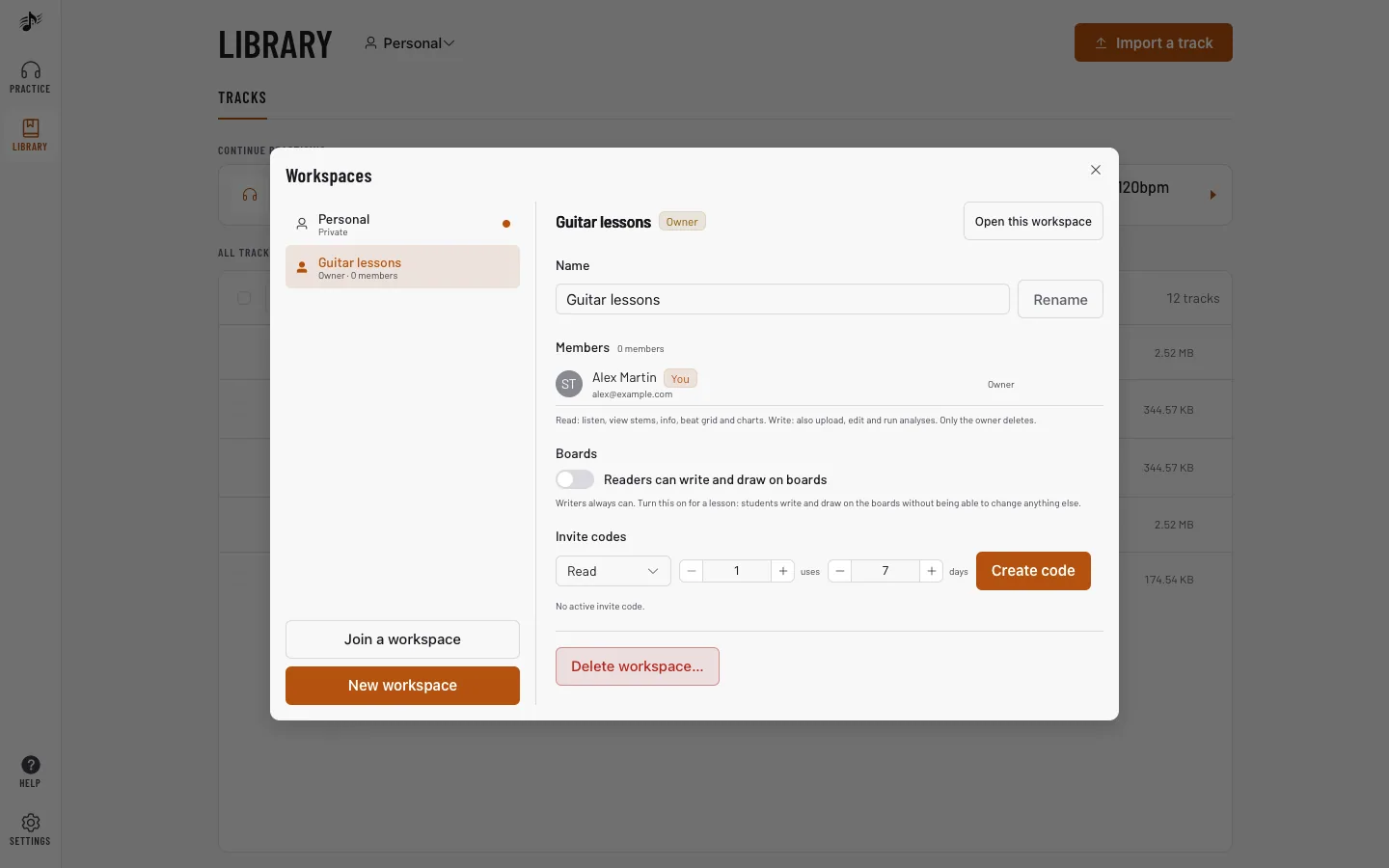
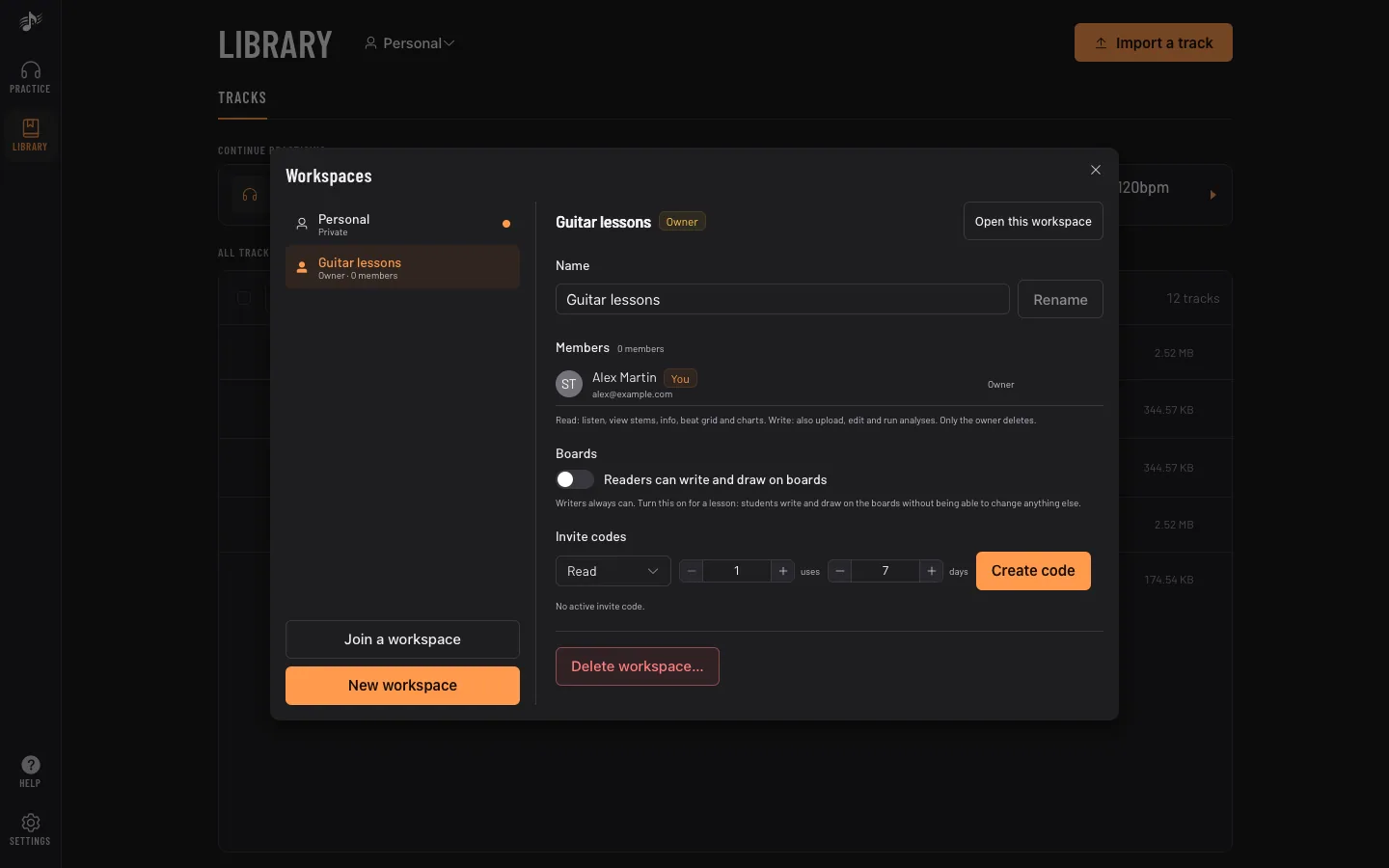
From the same window, the owner changes a member’s role, revokes access or deletes the workspace; members can leave. Your plan sets how many shared workspaces you own and how many members each can have.
When other members have the same track open, their faces appear next to its title.
Setups that work
Section titled “Setups that work”- Teacher and students: one workspace per class (or per student), a Read code for the students, and Readers can write and draw on boards turned on for the lesson. Students follow your loops and charts without changing them, and everyone writes on the same board.
- Band: everyone with Write, one track per song of the set, sections and stems shared, a workspace board for setlist ideas.
- Duo or coach: a small workspace where you share your recorded takes for feedback.