Practice
The transport at the bottom of the Practice page is always there, whatever your layout: play, loop, Speed and Pitch. Changing the speed never changes the pitch, and the other way round. Its View buttons make the waveform follow the play head and zoom it in or out (on a phone, one button holds both).


Loop and slow down
Section titled “Loop and slow down”- Drag across the waveform to select a passage: that is the loop. With repeat on (
L), it plays over and over. - The loop joins its end to its start with no gap, so the beat never stops. A short track (30 s or less, like a drum or brush loop) repeats the same way.
[and]set the loop start and end at the play head, in time with the music.- Save a loop to find it again in the Loops panel next time.
- Snap to beat puts both ends exactly on a beat once the beats are known.
Tip: Slow down in 5% steps until the passage is clean, then speed back up one step at a time.
Map the song
Section titled “Map the song”- Markers are bookmarks: press
Mthe moment you hear the spot. - Sections (intro, verse, chorus…) show as coloured bands on the waveform. Add them yourself, or let Auto-detect sections propose them.
- Tempo holds the beat map behind the bar lines, the chord grid and the metronome’s sync. Fix it there when the bar lines are off.
- The Navigator panel lists markers, sections and loops together in time order. Filter by type with the tabs of its header row, add any of them from +, auto-detect sections, and go to, play, edit, extract or delete each row.
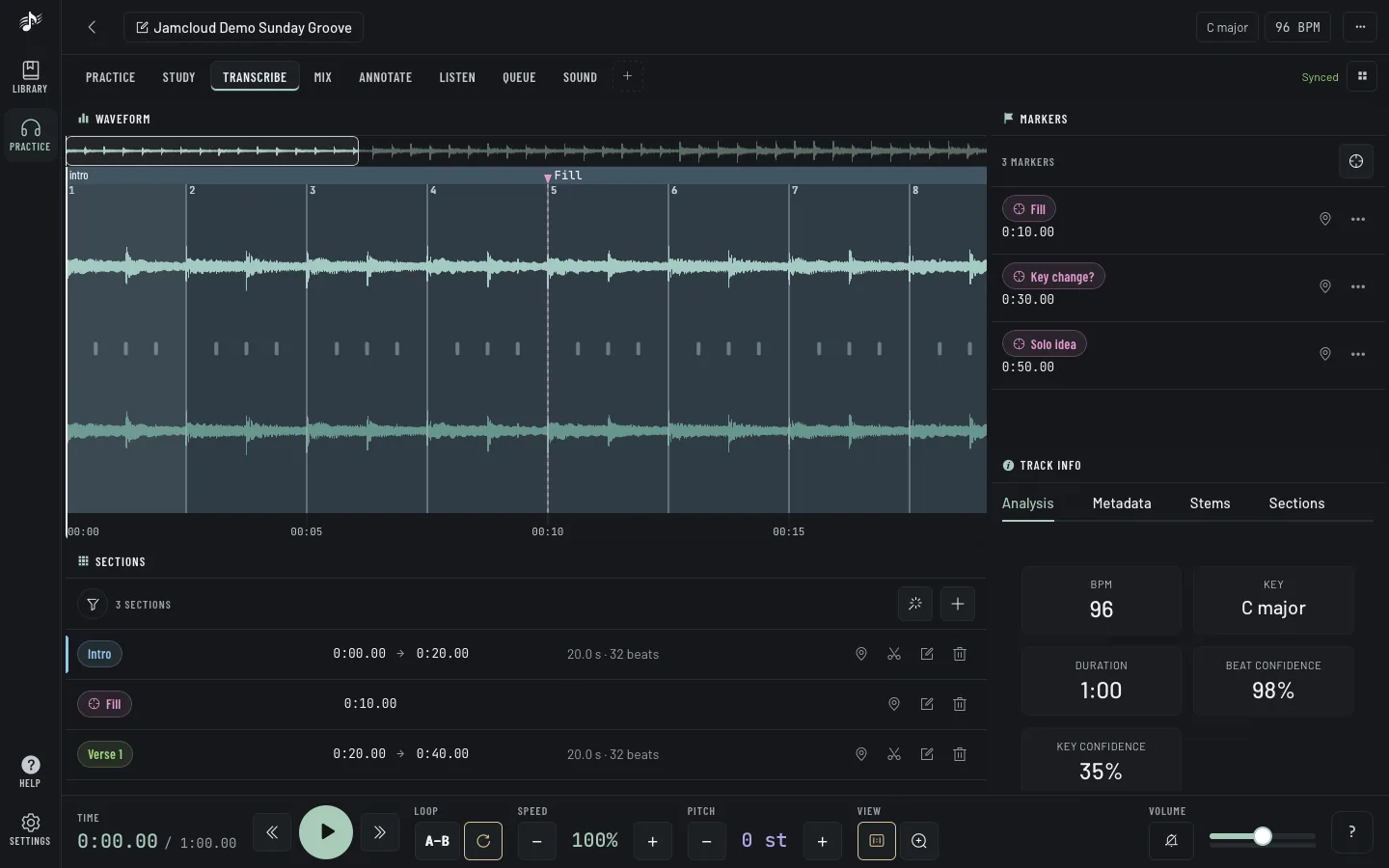
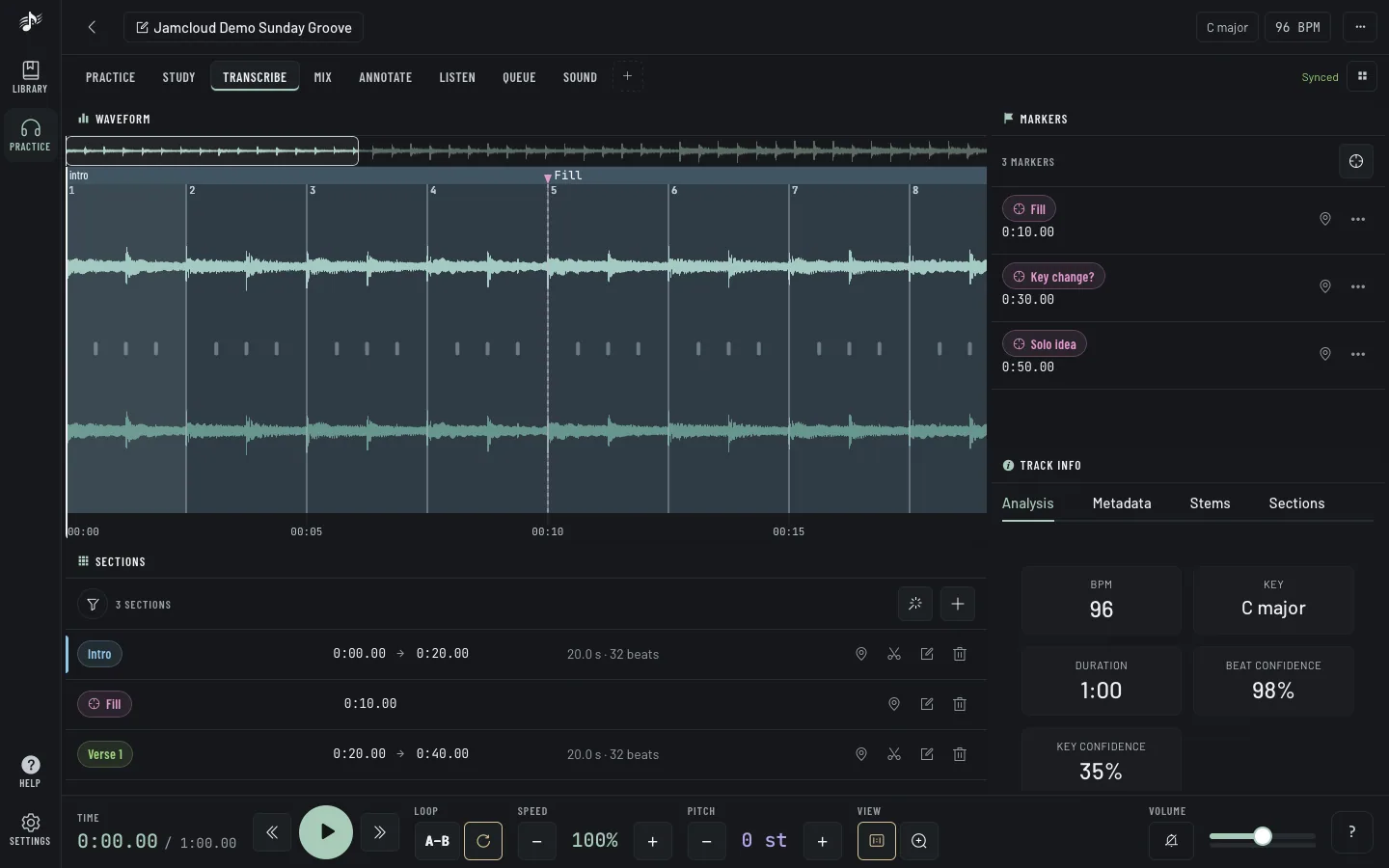
Everyone in a workspace sees the same loops, markers and sections.
Tuner and metronome
Section titled “Tuner and metronome”- Tuner listens through your microphone, with instrument tunings, a chromatic mode and your own tunings.
- Metronome has tap tempo, accents, subdivisions, polyrhythms and a library of rhythms from around the world. Sync makes it click on the track’s own beats, even when the tempo moves.
Both fit a small corner or a whole area.
Record yourself
Section titled “Record yourself”Put on headphones, then press Record in the Recorder. With a loop set, it records exactly one pass. Compare plays your take over the original and draws both waveforms or spectra, so you see where you are early, late or out of tune. Takes are private until you share them with the workspace.
Scratch deck
Section titled “Scratch deck”The Scratch deck panel puts the track on a DJ turntable. It is there only once your administrator has turned it on; then show or hide it in Settings › Panels like any panel. Its header row holds play, the Pads, FX and Deck tabs, the position and tempo, the deck’s state and Rec. On a phone it opens at full height, so the wheel is big enough to play.
- The wheel: touch it to hold the record, move it to scratch, forwards or backwards; the sound follows your hand like vinyl. In CDJ mode (the Deck tab), the outer ring of a playing deck speeds up or slows down a little instead, to line up with another source.
- Pitch: the fader changes the speed (±8, ±16 or ±50 %); − and + nudge it while held. Tap the readout to come back to 0.
- Pads: eight Cues (tap to set, tap again to jump), Rolls that repeat a slice while you hold them, Censor, Reverse, Brake and Spin back, and Loops of ¼ to 8 beats. Beat lengths follow the track’s tempo.
- FX: the Cut fader (hold Cut to silence), the Transformer that chops the sound on the beat, a Filter (left low-pass, right high-pass) and an Echo.
- Slip mode keeps the song moving under scratches, rolls and censor, so it carries on where it would have been.
- Rec records what the deck plays as a take of the track, listed with your other takes.
The deck takes over from the normal player at your first move on it; closing the panel, or Back to the player, hands the track back where the deck is. On a computer, keys work while the panel has the focus (the Deck tab lists them), and a MIDI DJ controller can drive the wheel, pitch and pads in Chrome or Edge (MIDI controller, then Learn for each control).