Your workspace
The middle of the Practice page is made of areas, and each area shows one panel. How they are arranged is a layout, and each layout is a tab. Build as many as you need (up to 20): they are saved to your account and follow you on every computer.
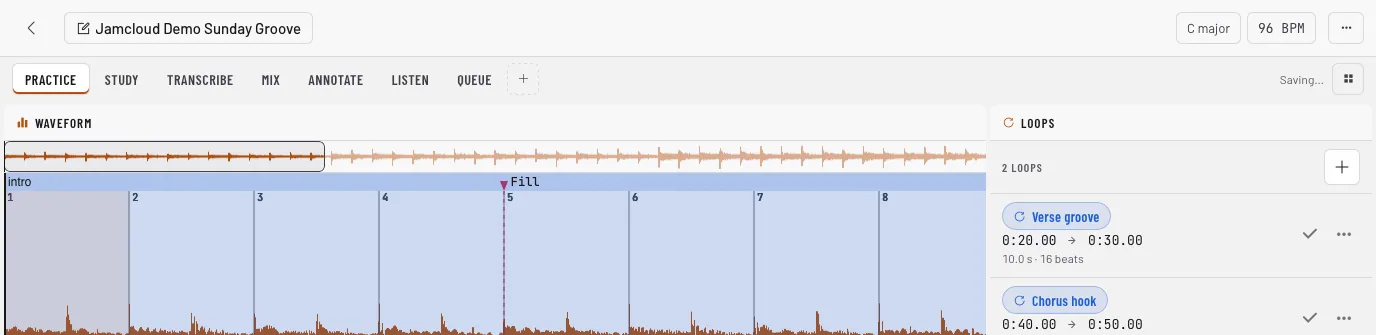
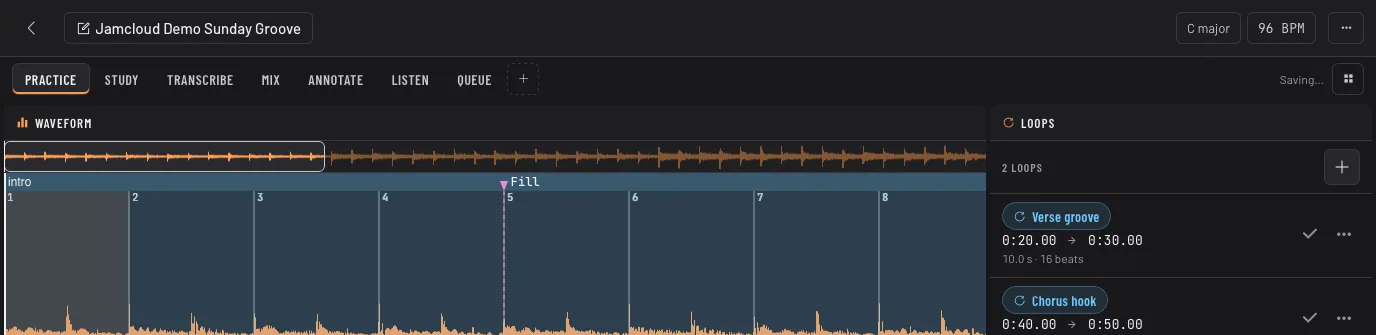
Start from a ready-made layout
Section titled “Start from a ready-made layout”- Practice: the waveform and your loops. To drill a passage.
- Study: waveform, metronome, chord grid and board. To learn a song’s harmony while you play along.
- Transcribe: waveform, sections, markers and track info. To map out a song.
- Mix: waveform, stems mixer and sound console. To play along with the song minus your part.
- Annotate: waveform, markers, sections, tempo and board. To prepare a lesson or a rehearsal.
+ at the end of the tabs adds a fresh copy of any of them, or a blank layout to build from scratch.
Change it
Section titled “Change it”Open Layout options › Edit layout. Each area can then be split to the right or below, closed, or switched to another panel by clicking its name. Drag the line between two areas to resize them, at any time. Click Done or press Esc when it suits you; every change is saved as you go.
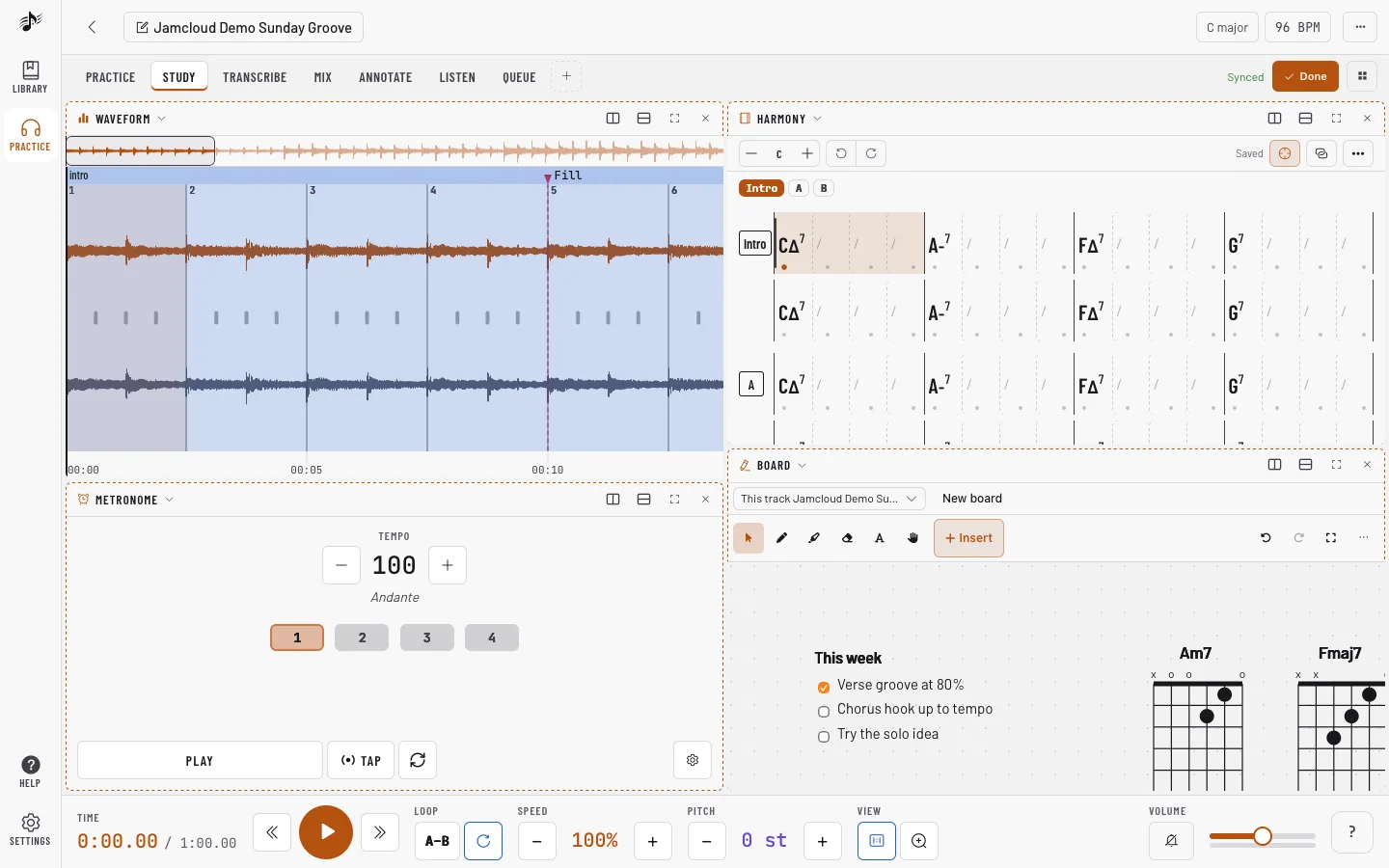
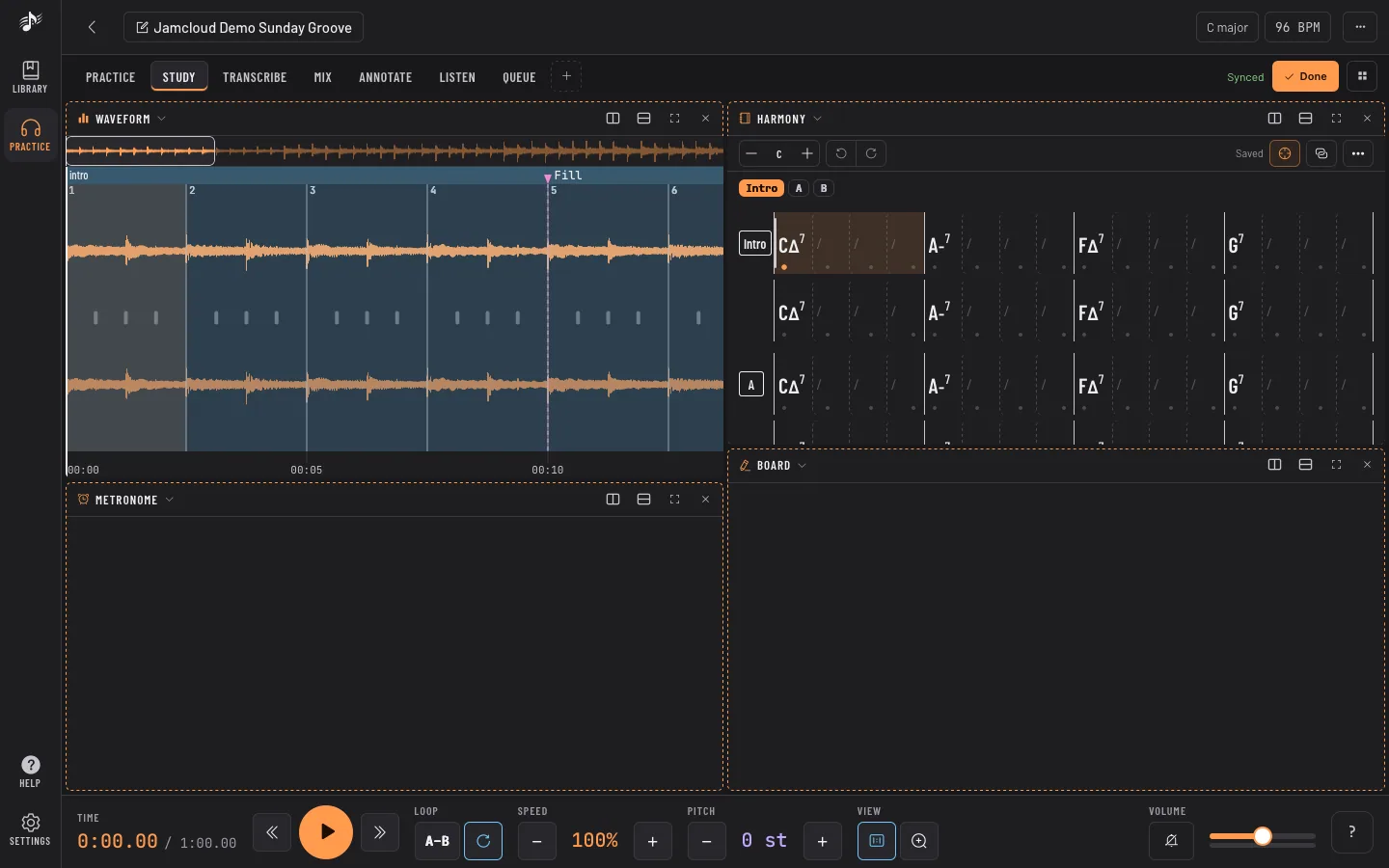
Ctrl + Space maximizes the area under the pointer, and brings the others back. Layout options also renames, duplicates, reorders, resets and deletes tabs.
The panels
Section titled “The panels”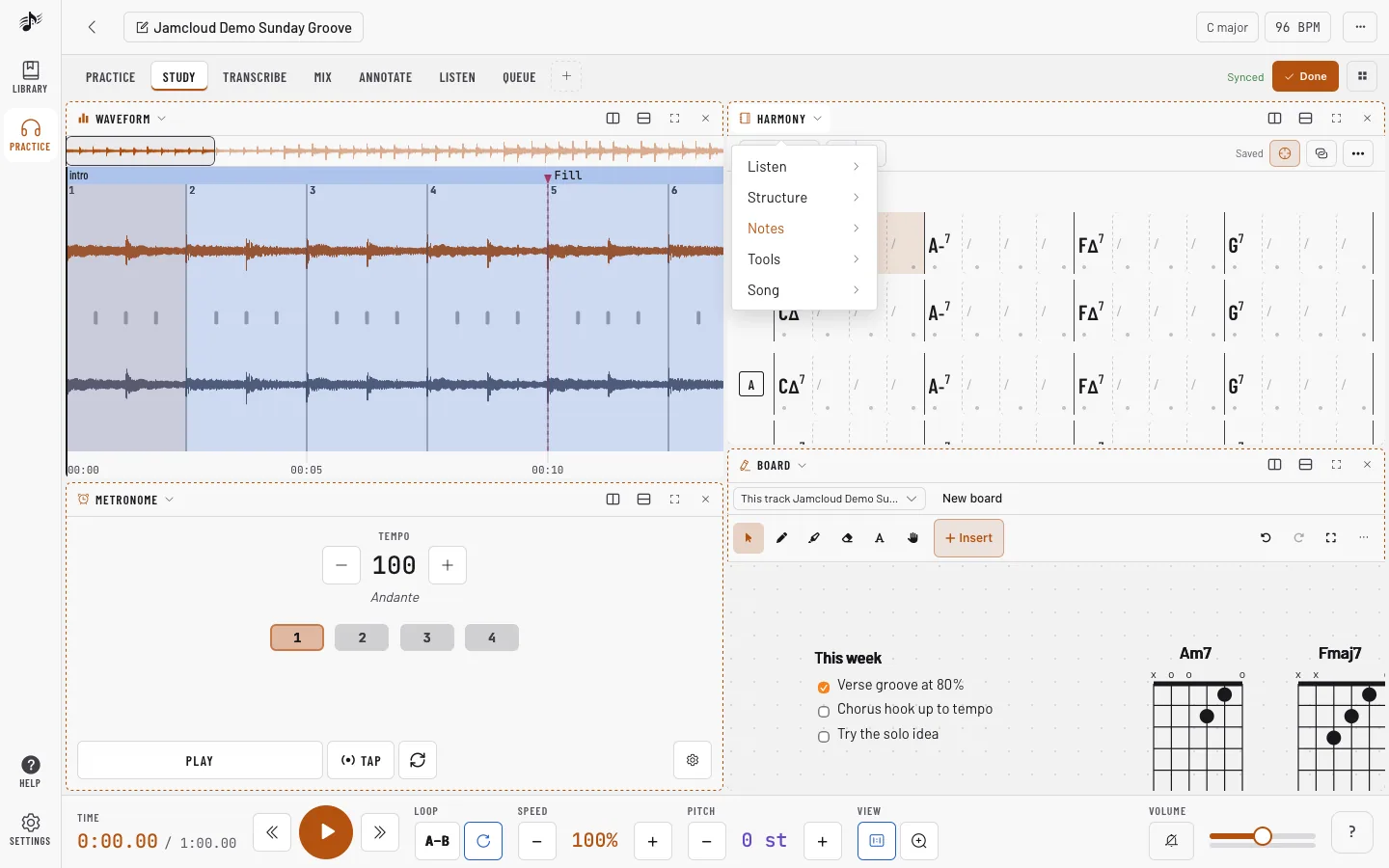
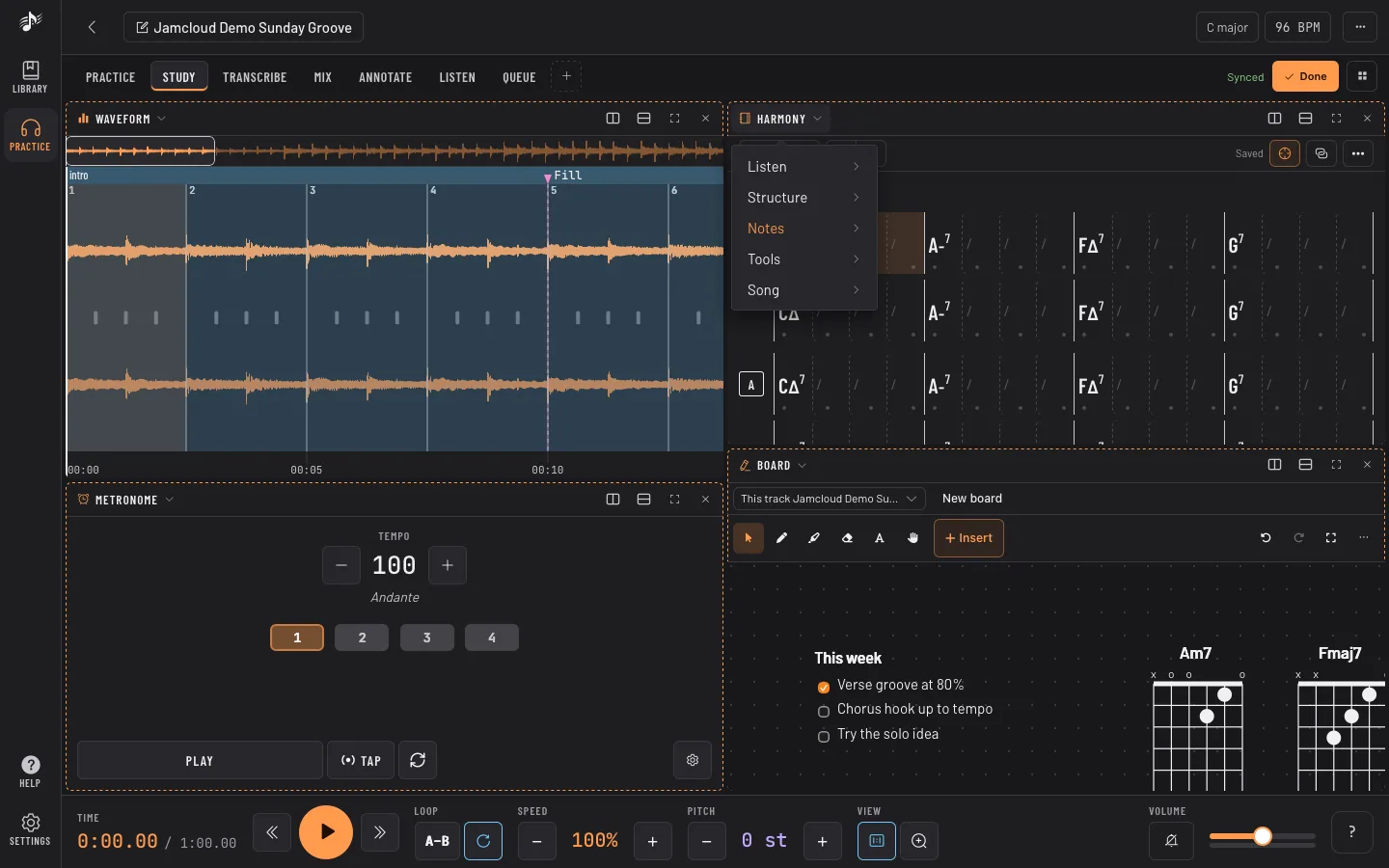
- Listen: Waveform, Spectrogram, Mixer (stems), Sound (equalizer, compressor…), Export, Spectrum, Queue.
- Structure: Loops, Markers, Sections, Tempo (the beat map).
- Notes: Harmony (chord grid, score, tab), Board (shared whiteboard).
- Tools: Tuner, Metronome, Recorder, Compare (your take against the original), Scratch deck (a DJ turntable, when your administrator has turned it on).
- Track: Track info, Library, My computer (Local library), Karaoke (lyrics that follow the track, see Karaoke).
Any mix works: every panel follows the same track and the same play head, and you can show the same panel twice.
Panels you never use can be turned off in Settings › Panels: they leave the panel list and the phone panel bar. An area that already shows one says it is off, and comes back as it was when you turn the panel on again. The Waveform always stays on. A panel your administrator turned off for everyone is marked Turned off by the administrator there and can’t be turned on.
Ideas of setups
Section titled “Ideas of setups”- Learning a solo: a big waveform with Loops and a small Metronome; slow down, then speed up step by step.
- Teaching: Harmony next to a Board in a shared workspace, so you and your student write on the same page.
- Rehearsing with the band: Mixer to mute your instrument, Sections to jump to the bridge.
- Transcribing: Spectrogram under the waveform, Markers and Harmony on the side.
- Checking your playing: Recorder and Compare side by side.
On a phone, the page shows one panel at a time instead: see Phone, settings and shortcuts.
The Listen and Queue tabs play a queue of tracks, and the Queue panel fits in any layout: see Listen.